The original manual is reproduced below. The web demo adds a top-bar Home tile, left/right page swipes, and proportional All Volume. The World Clock section describes the separate clock project.
USAR LV · ROOM CONTROLOPERATOR GUIDE
Your room. One touch.
USAR LV touch panel & WebXPanel — illustrated user guide
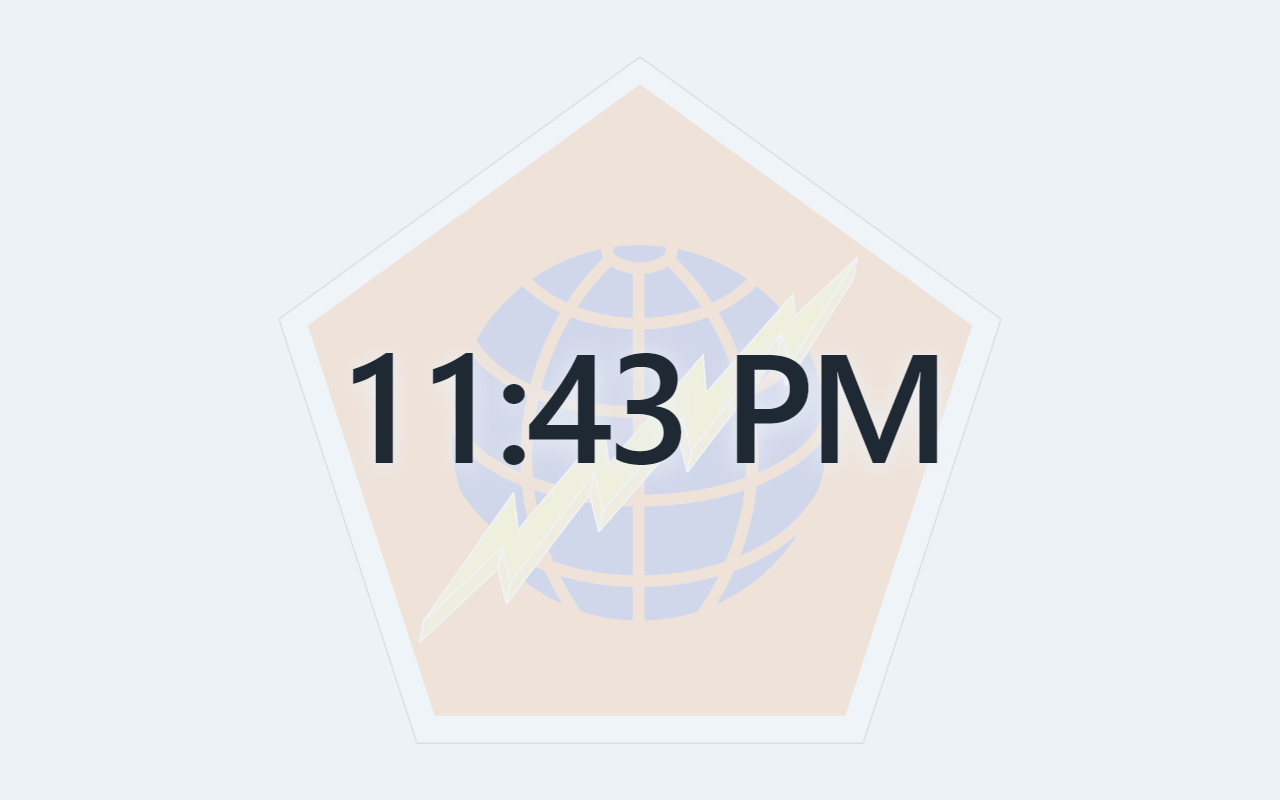
Home screen: the 505th Signal Brigade watermark and clock. Touch anywhere to open Video.
Quick start
Touch the Home screen to open Video.
Choose a Source, then touch the desired Destination.
Adjust Room Volume along the bottom.
For a meeting, use the configured Conf On action, then open Microphones and Cameras as needed.
When finished, open the red power button and choose the appropriate shutdown action.
USAR LV · ROOM CONTROLOPERATOR GUIDE
Find your way around
Main Menu, shortcuts and the always-available audio bar
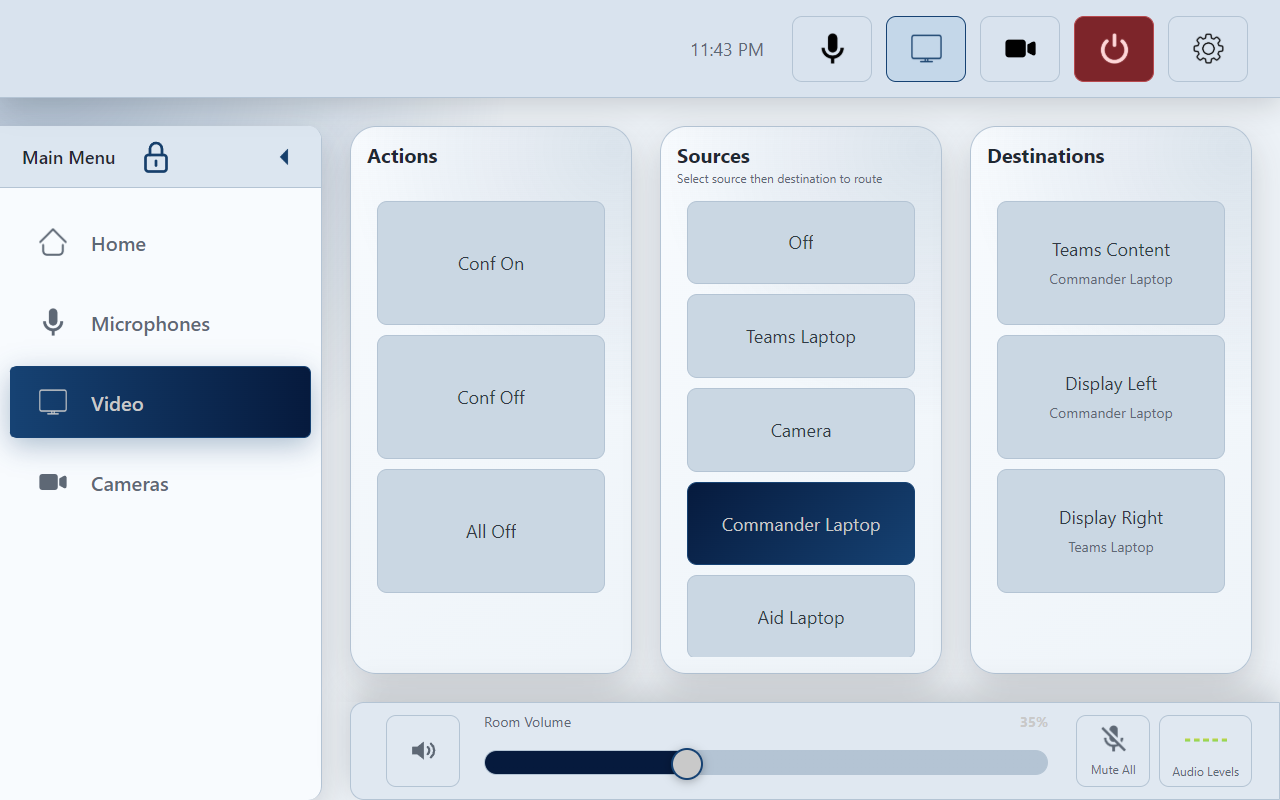
Current Video page with Main Menu open. The routing hint appears under Sources.
Area
How to use it
Main Menu — left
Choose Home, Microphones, Video or Cameras. Touch the small arrow to open or collapse the menu.
Lock beside Main Menu
Locked keeps the menu open. Unlocked allows it to collapse two seconds after choosing a menu item. Simply opening the menu does not start the timer.
Top bar — right
Microphone, display and camera icons open their pages directly. The red power icon opens Systems Off; the gear opens Panel Settings.
Bottom bar
Room Volume, room speaker mute, Mute All and Audio Levels are available on control pages. Conference Volume appears only when enabled.
USAR LV · ROOM CONTROLOPERATOR GUIDE
Send video to a display
Select source, then destination — in that order
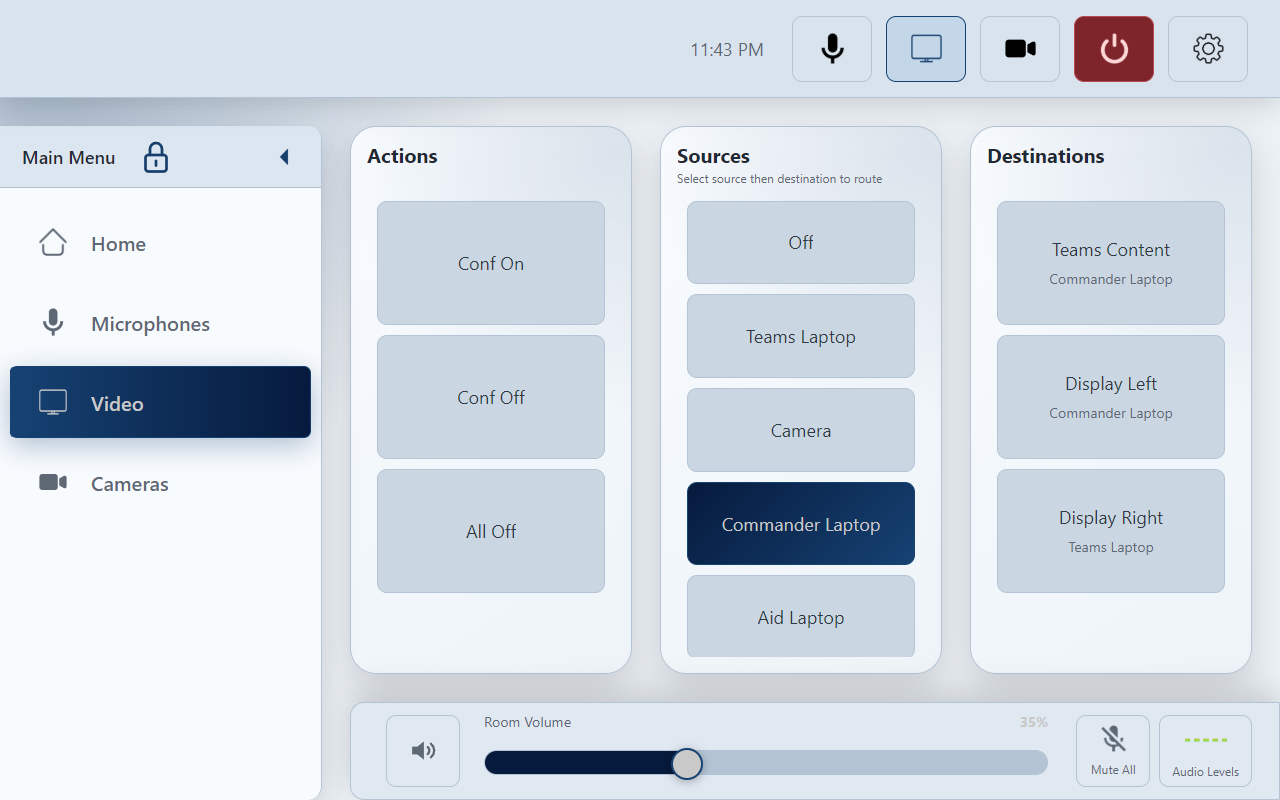
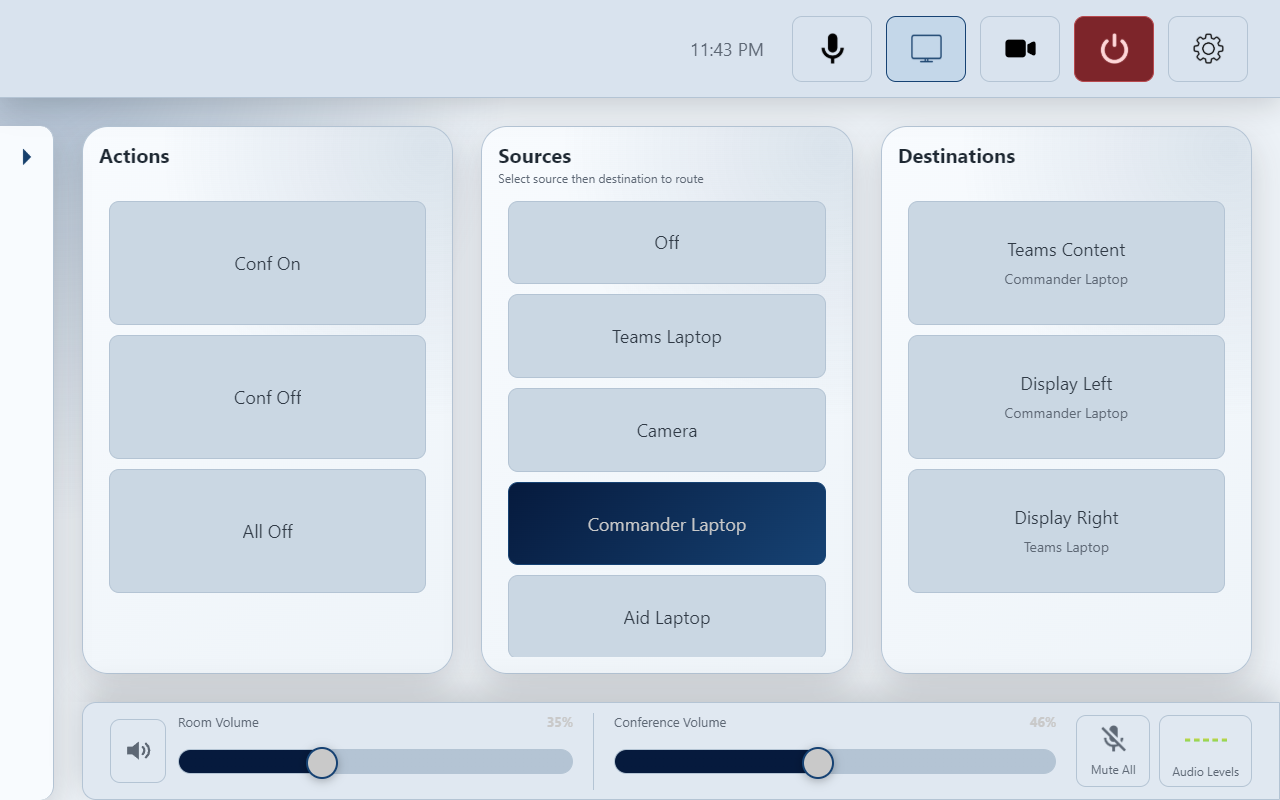
Example: Commander Laptop is selected; Display Left reports Commander Laptop beneath its name.
Route a picture
Under Sources, touch the input you want to show.
Under Destinations, choose Display Left or Display Right. Use Teams Content to send content into the meeting.
Check the source name underneath that destination and confirm the picture on the actual display.
To use another display, select the source and then that destination.
Actions and Off
Actions perform room-programmed tasks such as Conf On or Conf Off. Their highlight is momentary while pressed; it is not a persistent status indicator.
If an Off source is available, select it and then a destination to request that route be cleared. The exact display response is set by the room program.
Swipe within any long list to reach more buttons.
USAR LV · ROOM CONTROLOPERATOR GUIDE
Control the microphones
Presets on the left; individual audio controls on the right
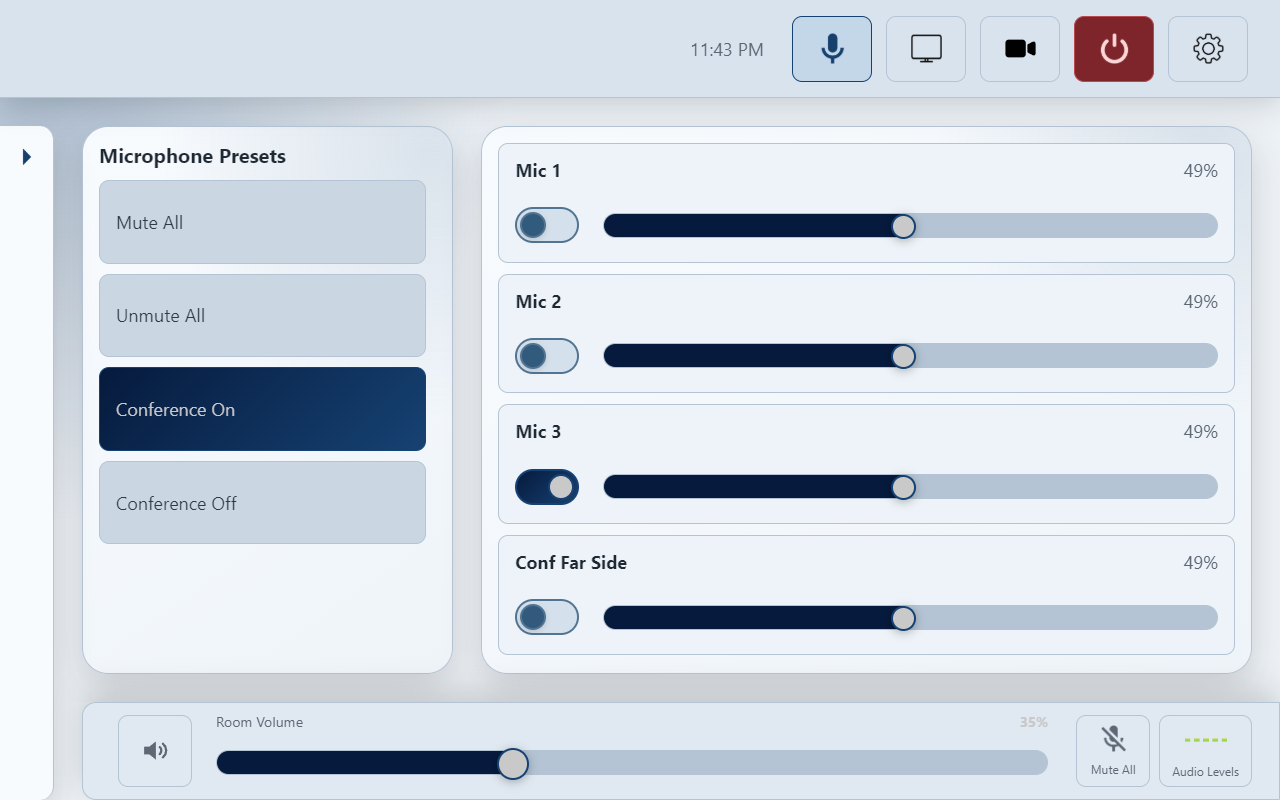
Microphones page with MAIN 0.08 labels. Mic 3 is shown muted as an example, not a live status reading.
Use a preset
Touch a named Microphone Preset, such as Mute All, Unmute All or Conference On, when available.
A selected preset can remain highlighted when the room controller reports it active. There is no separate “Active” text.
Preset names and behavior come from the room program.
Adjust one channel
Find the channel by its label.
Touch its switch to request mute or unmute. In the illustrated light mode, the switch moved right and highlighted means muted.
Move that channel’s slider left to lower the level or right to raise it.
USAR LV · ROOM CONTROLOPERATOR GUIDE
Aim and recall a camera
Tracking controls, manual framing and saved views
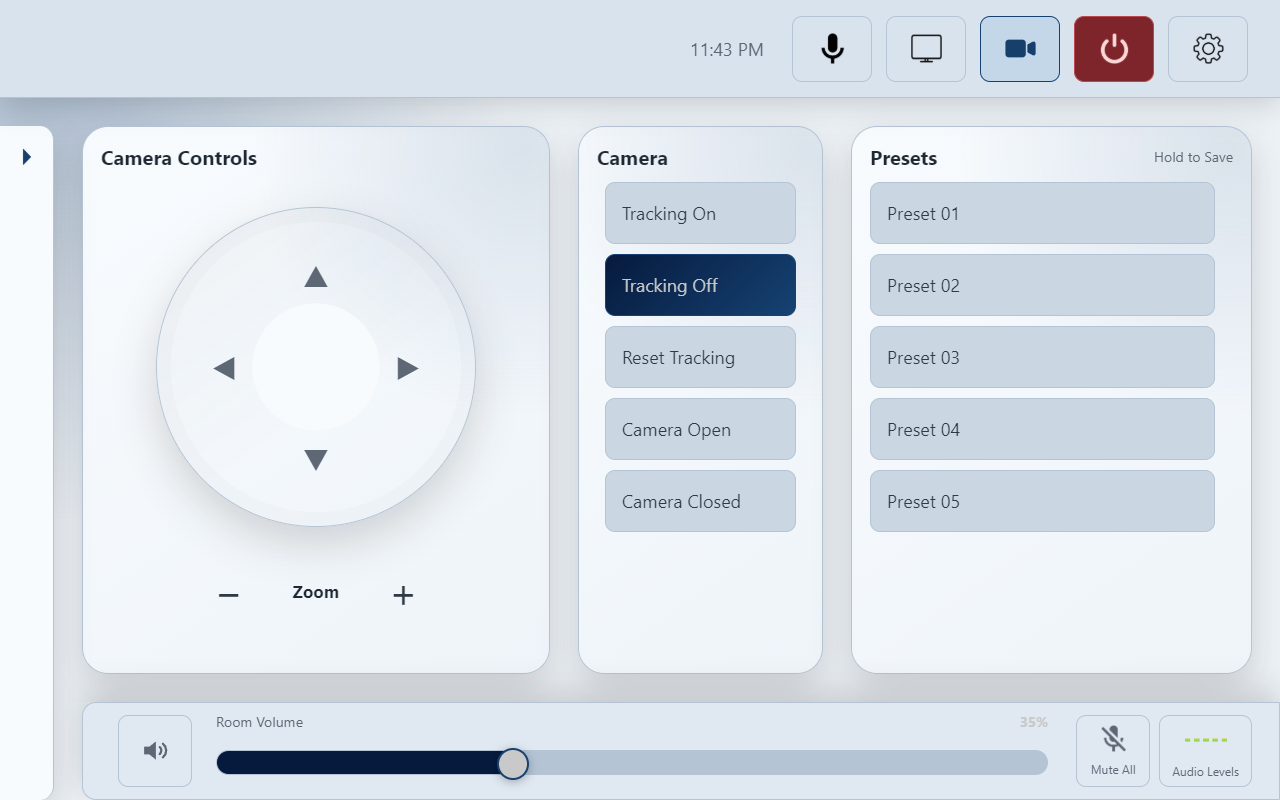
Cameras page: directional controls at left; Tracking On/Off, Reset Tracking and Camera Open/Closed in the middle; Preset 01–05 at right.
Frame the shot
For manual framing, select Tracking Off in the Camera section.
Use the arrow buttons to adjust the view.
Use Zoom − for a wider view and Zoom + for a closer view.
Confirm the image on the camera preview or meeting display.
Use Tracking On to request automatic tracking, or Reset Tracking to request a tracking reset. Camera Open and Camera Closed are programmed camera actions; confirm the actual camera view.
Recall or save
Recall: briefly tap a named preset.
Save: frame the shot, then press and hold the desired preset. Release after the room system confirms Preset Saved.
Saving replaces that preset’s stored view. Save only when you intend to change it.
USAR LV · ROOM CONTROLOPERATOR GUIDE
Use audio during a conference
Room speakers and conference audio have separate controls
Conference mode example: the bottom bar shows Room Volume and Conference Volume side by side.
Before the meeting
Use the available Conf On or Conference On action.
Choose the required video route and camera.
Join the meeting using the Teams computer or its meeting controls. This panel does not provide a Teams Join button.
Confirm both sides can hear before starting.
Choose the right level
Room Volume adjusts room speaker volume. The speaker button beside it requests room speaker mute/unmute.
Conference Volume adjusts the conference audio path assigned by the installer. Confirm during handover whether it controls audio sent to the remote participants or received from them; the UI label alone does not identify the direction.
USAR LV · ROOM CONTROLOPERATOR GUIDE
Fine-tune Audio Levels
Open the spectrum button at the bottom right
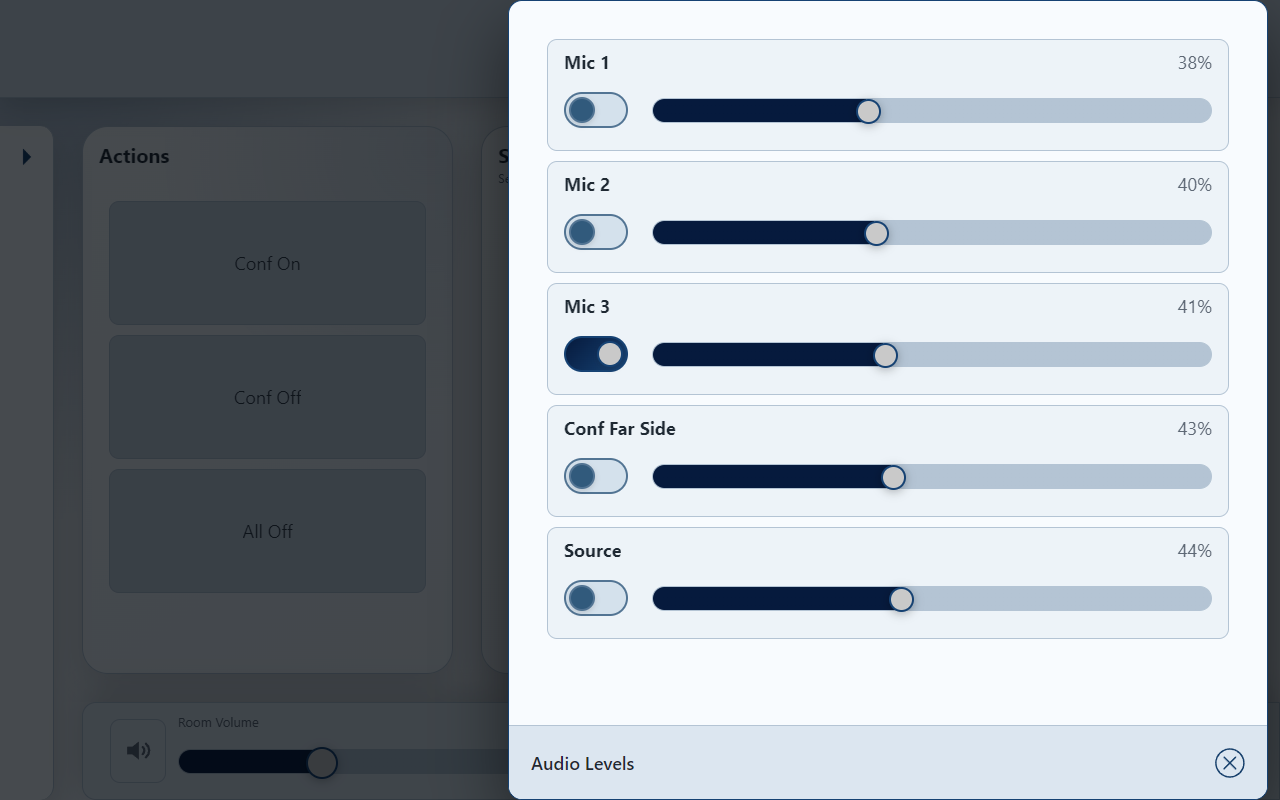
Audio Levels: Mic 1, Mic 2, Mic 3, Conf Far Side and Source, using MAIN 0.08 names. Levels and mute states are examples.
Touch Audio Levels in the bottom bar.
Find the required channel, then adjust its slider. Touch its switch to request mute or unmute.
Touch the × in the lower-right corner to close the popup.
The five-second rule
Your finger takes priority. A slider ignores incoming level feedback while touched and for five seconds after release. Touching it again restarts its own timer.
Only new feedback arriving after the pause can update it. Old feedback is not replayed when five seconds expire.
What the spectrum means
The bouncing bars are a controller-enabled animation, not a measured sound level. Flat bars alone do not prove that the room is silent.
These popup channels are independent of the Microphones page. Five rows fit in the current panel layout; additional enabled rows require scrolling.
USAR LV · ROOM CONTROLOPERATOR GUIDE
Make the display comfortable
Panel Settings change this interface, not the room audio mix
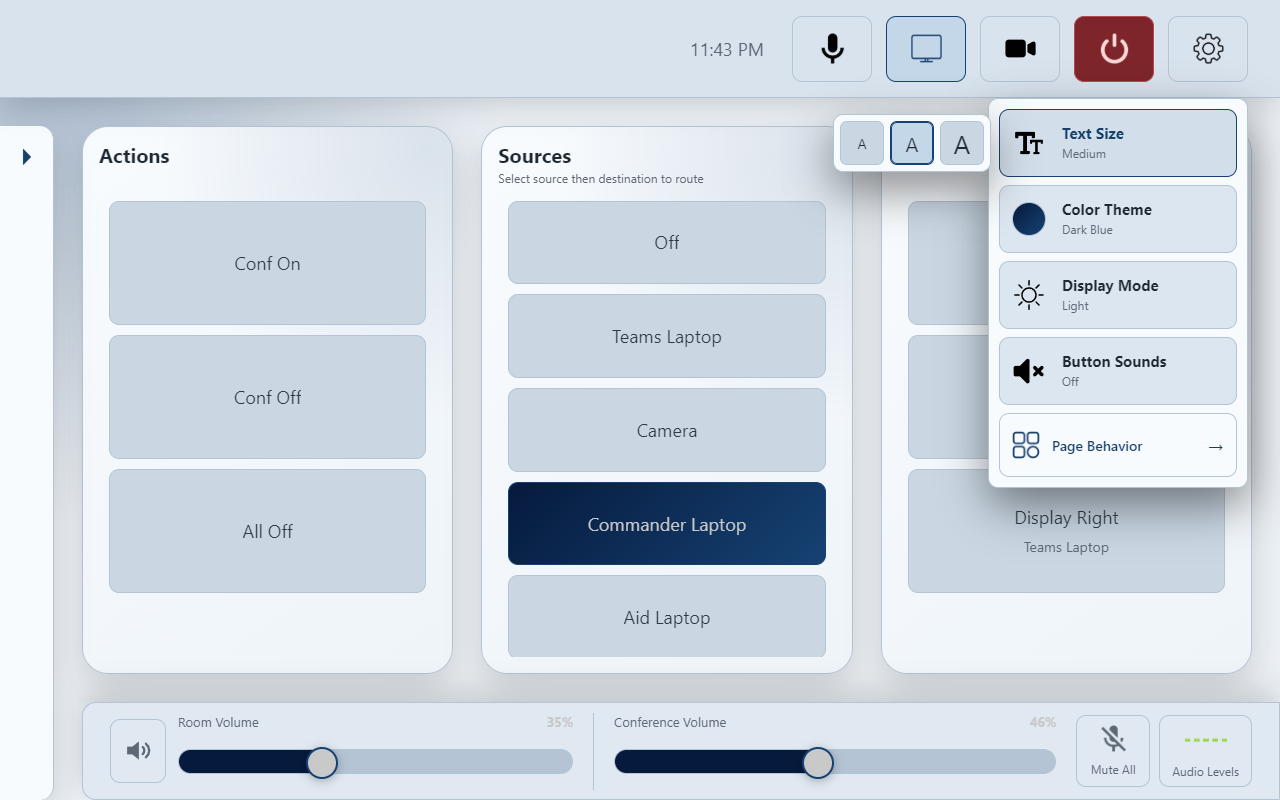
Touch the gear icon, then Text Size to reveal Small, Medium and Large choices.
Setting
Use
Text Size
Choose Small, Medium or Large for easier reading.
Color Theme
Choose the preferred interface color.
Display Mode
Switch between light and dark appearances.
Button Sounds
Enable or disable touch sounds. This is separate from Room Volume.
Page Behavior
Open transition settings for pages and popups.
USAR LV · ROOM CONTROLOPERATOR GUIDE
Choose page transitions
Page Behavior is available from the gear menu
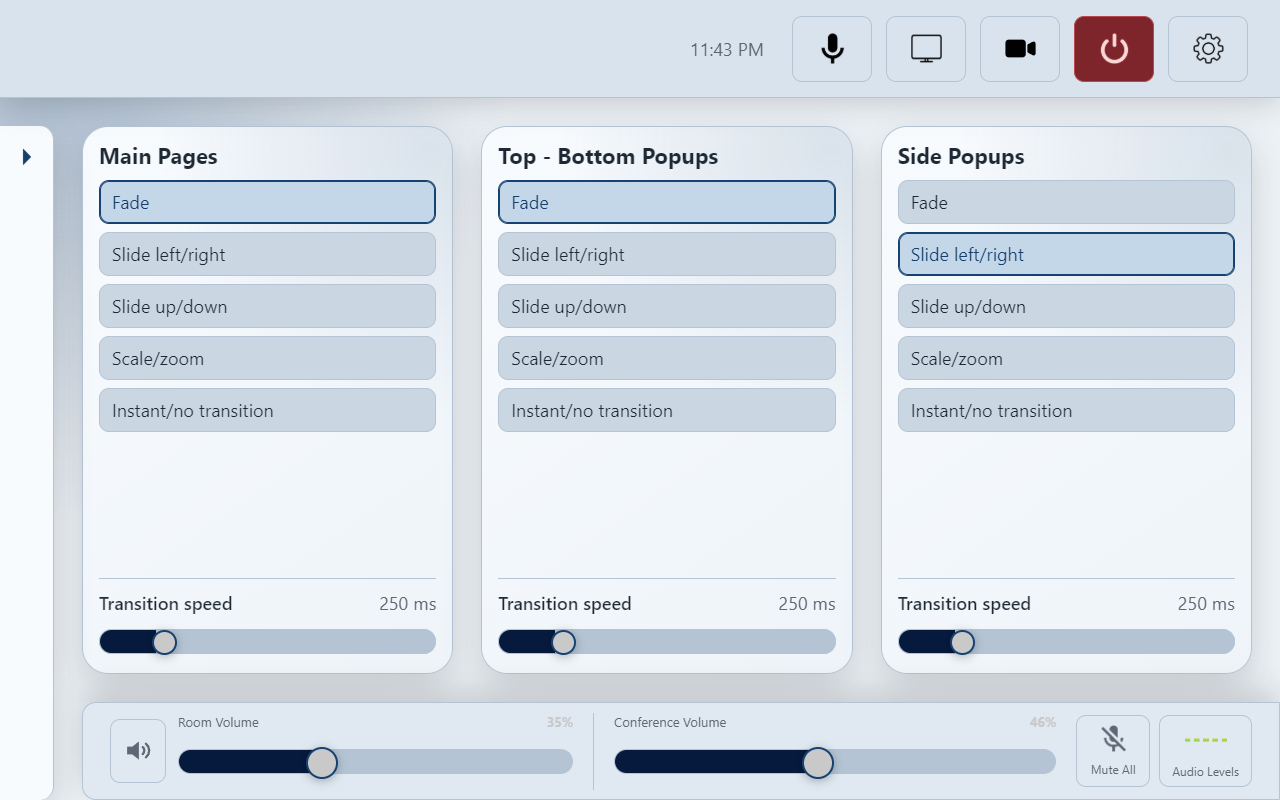
Page Behavior has separate choices for Main Pages, Top–Bottom Popups and Side Popups.
Open Panel Settings → Page Behavior.
Choose a style in the desired section: Fade, Slide left/right, Slide up/down, Scale/zoom or Instant/no transition.
Adjust the speed slider. Lower milliseconds are faster; higher milliseconds are slower.
Navigate to a control page or open a popup to try the result.
These choices affect appearance only. They do not change video routing, audio levels or the time required for room equipment to respond.
USAR LV · ROOM CONTROLOPERATOR GUIDE
Finish and shut down
Systems Off — each visible button acts immediately
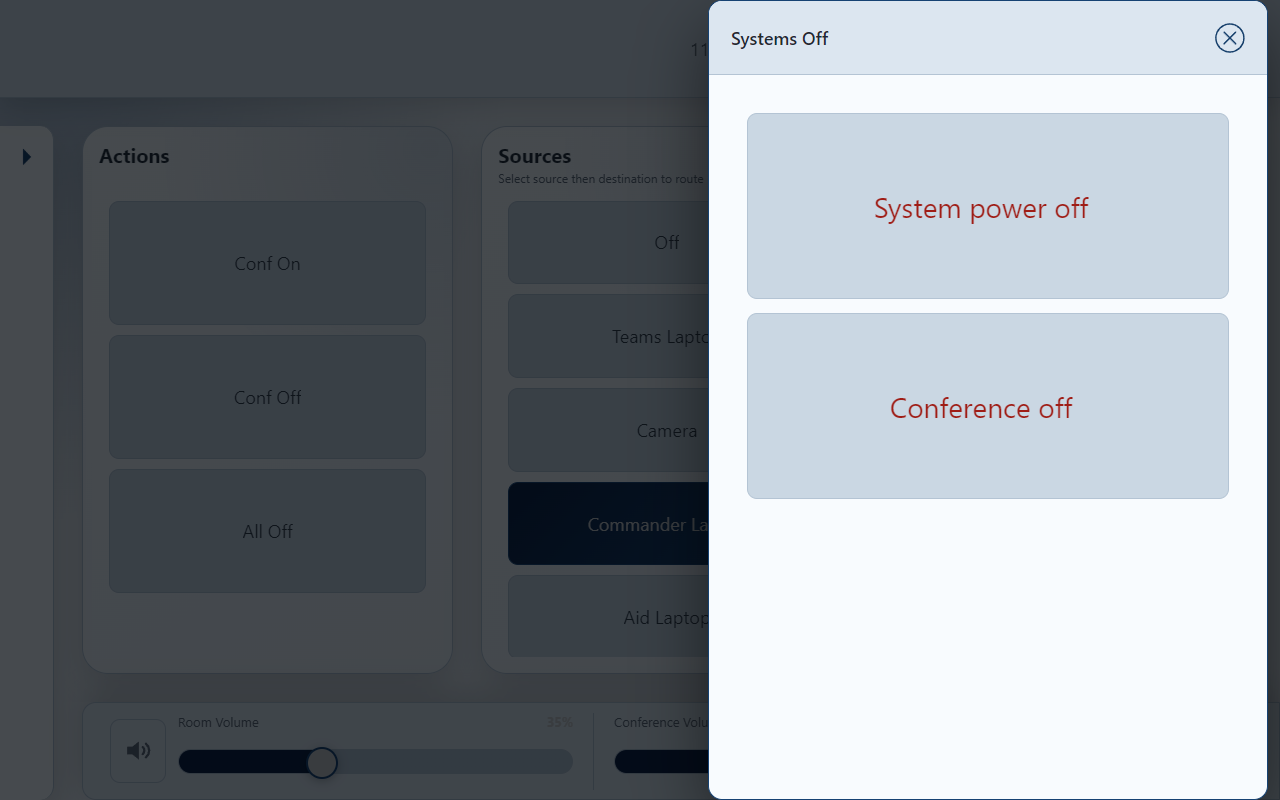
Systems Off popup. Conference off appears only when the room controller enables it.
Conference off
Use Conference off to request the room’s conference shutdown action, when available.
End the meeting in Teams as needed. Do not assume this room-control action leaves the Teams call unless the installer has confirmed that behavior.
System power off
Use System power off when the room session is finished and you want the programmed full-system shutdown.
One tap sends the command. There is no confirmation screen.
USAR LV · ROOM CONTROLOPERATOR GUIDE
The World Clock
Ten cities, one screen — automatic local-network time
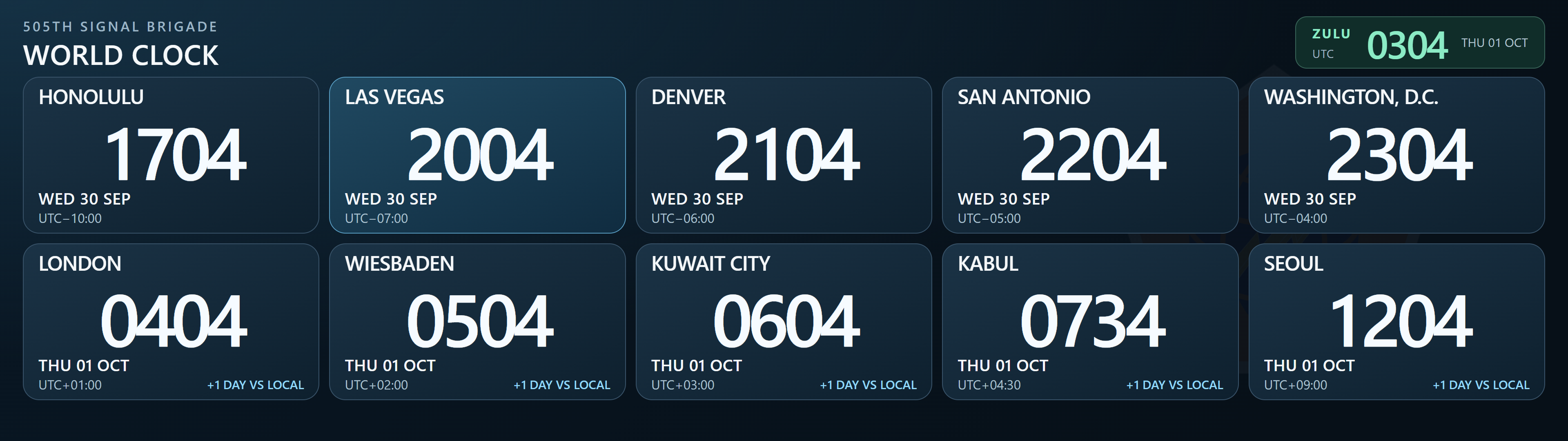
Illustrative rendering of the clean clock project. Example times; not a live display capture.
Read the display
All ten city clocks remain visible in two rows of five; there is no page rotation. Large, centered numbers show 24-hour time. City labels, dates and UTC offsets identify each location. The header also shows Zulu (UTC).
Top row
Bottom row
Honolulu
London
Las Vegas
Wiesbaden
Denver
Kuwait City
San Antonio
Kabul
Washington, D.C.
Seoul
The date under each city can differ from Las Vegas. A day-difference indicator identifies a city on the previous or next local date. Time-zone rules account for daylight-saving changes where observed; UTC offsets may change seasonally.
Runs without Internet
The dedicated DGE runs the clock locally. The room processor supplies date and time over the local network. No Windows computer, browser window or Internet connection needs to stay open for the installed display to run.
The colored test borders and CHECK B1 readout were temporary commissioning aids and are not part of the final operator display. Leave the commissioned display settings unchanged.
USAR LV · ROOM CONTROLOPERATOR GUIDE
Table microphones and laptop audio
Routine checks without changing system programming
Shure tabletop microphones
The installed tabletop microphones are Shure MXA320. Their touch buttons are used to request a mute change from the room controller; the controller handles the audio mute and light indication separately.
Briefly press and release a microphone button once. Avoid repeated rapid taps.
Check the microphone light and the corresponding touch-panel mute indication. The configured indication is red for muted and green for unmuted.
Confirm with the far-end participant that your voice is heard when unmuted. Teams also has its own microphone mute.
Play laptop sound through the room
Connect to the intended table input and select its source, then the required destination on the touch panel.
On the laptop, select the connected HDMI/Crestron audio output rather than the built-in speakers. Start playback.
Check Room Volume, room speaker mute and the relevant source control in Audio Levels. Start at a modest level.
If video works but sound does not, report Commander Laptop or Aid Laptop as applicable and whether the same laptop works at another input. A visible picture alone does not confirm audio routing.
During a Teams call
Room speaker level, room microphone mute and the meeting application's mute are separate controls. Check both room and meeting controls when one side cannot hear. For choppy video, report whether the local camera preview also stutters; avoid changing capture or extender settings during the meeting.
Unexpected certificate or connection prompt
If a camera or intercom page shows a certificate warning, note the displayed device address and contact room support. Do not repeatedly approve trust prompts or change security settings as a routine operating step.
USAR LV · ROOM CONTROLOPERATOR GUIDE
Quick help
Start with the visible symptom; avoid changing installer settings
What you see or hear
What to do
No picture on a display
Select the source, then the destination again. Check the connected laptop is awake and producing video. Compare the destination’s source label with the physical display.
No sound in the room
Select the laptop HDMI/Crestron sound output. Check Room Volume, speaker mute and the relevant Audio Levels channel. Report the table input if only one fails.
Remote participants cannot hear you
Check the meeting app’s microphone mute and the room microphone mutes. Confirm conference mode is enabled. Have room support identify the correct outgoing conference level.
Room cannot hear the remote participants
Check Room Volume, room mute and the configured conference-receive channel. Confirm the Teams computer is using the intended room audio device.
A slider does not follow feedback immediately
It deliberately ignores incoming feedback while touched and for five seconds afterward. Wait without touching; a fresh update is required.
An Actions button stops highlighting after release
Normal: Video Actions use momentary touch highlighting, not a latched status light.
Buttons or entire lists are missing
The room controller supplies names and visibility. Missing items can indicate an intentional mode change or a connection/programming issue. Contact room support if unexpected.
WebXPanel still shows Weather or older labels
The browser may be using an older installed project or cached files. Refresh with Ctrl+F5 and have the installer verify the processor project. Loading the touch panel does not update WebXPanel.
Text size returns to default
Check for a save warning and confirm the current UI package is installed. Settings are device/browser-specific; reinstalling or clearing storage may reset them.
World Clock waits for time or reports overdue updates
The ten-city World Clock runs locally from processor time. Watch for a minute change; ask room support to check the time feed if frozen or blank. No Internet is required.
Before calling room support
Record the page, the button or channel name, what you selected, and what happened. A photograph of the screen is helpful. Avoid changing network, processor or DSP settings during a meeting.
This PDF and its companion HTML contain their pictures and work offline. No credentials are included.